
A Guide to Emergency-Ready Tech
From weather alerts to backup power, here's what to check to ensure your most important device is prepared.
Whether it’s the sudden rumble of an earthquake, the ominous warnings of a hurricane, or the heavy silence of a winter blizzard, the possibility of an emergency is a part of life. While we don’t like to dwell on these events, taking a few simple steps to prepare can provide enormous peace of mind, a feeling of control that we know is important to so many of you.
In today’s world, the smartphone in your pocket is one of the most powerful emergency tools you can have. It’s a flashlight, a radio, a library of first-aid information, and your connection to loved ones and emergency services. But it’s only useful if it’s charged and set up correctly. Today, let’s walk through a few simple things you can do to make your technology a true lifeline when you need it most.
Emergency Prep Tech: “Weather Alerts, Flashlight Apps & Backup Power Banks”
Your Digital Emergency Kit: Three Essential Steps
Think of these as the digital equivalent of storing water and batteries. They are simple, crucial, and can be done in just a few minutes.
1. Turn On (or Check) Your Emergency Alerts
Your phone can receive free, official alerts from the National Weather Service and other government agencies about severe weather or other imminent local emergencies. These are often on by default, but it’s wise to make sure.
On an iPhone: Go to Settings > Notifications. Scroll all the way to the bottom of the screen. Under the “Government Alerts” section, make sure the switches for “Emergency Alerts” and “Public Safety Alerts” are turned on.
On an Android: Go to Settings > Safety & emergency > Wireless Emergency Alerts and ensure the main switch for “Allow alerts” is enabled.


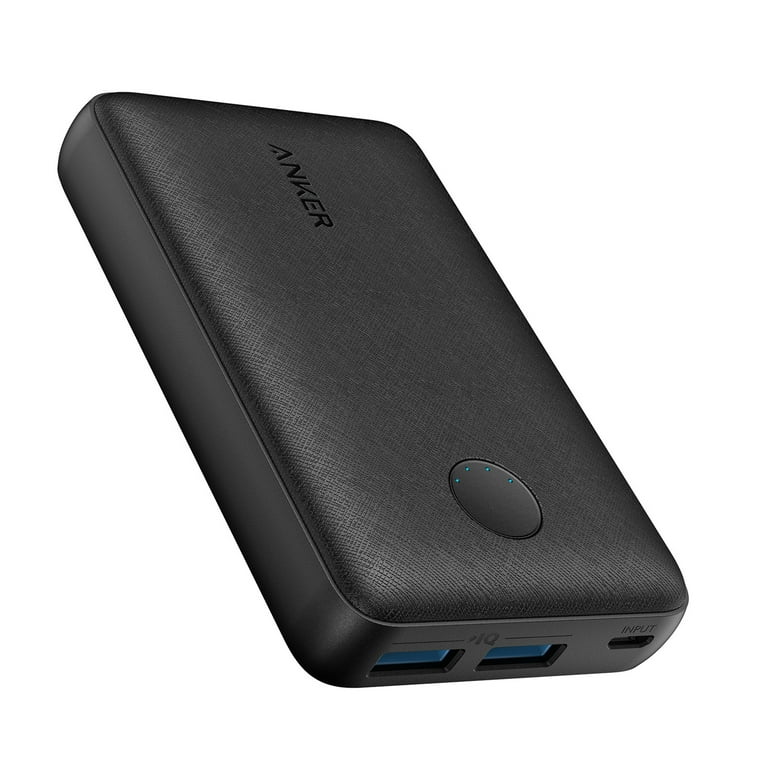
2. Get a Backup Power Bank
The most advanced phone in the world is useless if the battery is dead. A power bank is a portable battery that can recharge your phone, tablet, and other USB devices even when the power is out for days.3
How to Choose: When you shop for one, the most important number is “mAh” (milliampere-hour), which measures its capacity. A 10,000 mAh power bank is a great, affordable starting point and can fully charge most modern smartphones at least two times.
How to Maintain: A power bank is not a “set it and forget it” device. Get into the habit of recharging it every 3-4 months to make sure it’s full and ready when you need it.

3. Store Digital Copies of Important Documents
If you ever have to evacuate your home quickly, you may not have time to find and grab your important files. Having a secure digital copy on your phone can be a lifesaver.
How to Do It: Use your phone to take clear, readable photos of your driver’s license, passport, health insurance cards, and a list of key medications. You can then store these images in a secure place, like a locked note in the Apple Notes app or a “Secure Folder” on a Samsung phone, so they are protected by a password or your fingerprint.
More Tech for Your Go-Bag
Offline Maps: Both Google Maps and Apple Maps allow you to download maps of your local area directly to your phone. If cell service and internet go down, you’ll still have a detailed, working map to help you navigate.
First Aid App: The official American Red Cross offers a free “First Aid” app that provides simple, step-by-step instructions for handling common medical emergencies, from cuts and burns to more serious situations. It works even when you’re offline.
A Hand-Crank Radio/Charger: For longer power outages, a small hand-crank radio is an old-school classic with a modern twist. Most now include a built-in flashlight and a USB port that can generate enough power from a minute of cranking to make a short, emergency phone call.
Quick Tech Tip
Your phone’s built-in flashlight is one of its most critical emergency tools. You can usually access it from the Control Center (swipe down from the top-right on an iPhone) or the Quick Settings panel (swipe down from the top on Android). On an iPhone, you can press and hold the flashlight icon to reveal a slider that lets you adjust the brightness.
Tech Term Demystified: ‘mAh (milliampere-hour)’
You’ll see this on every power bank and battery. mAh stands for milliampere-hour, and it’s a measurement of a battery’s energy storage capacity. A higher mAh number means the battery holds more energy and can provide power for a longer time. For context, a typical new smartphone has a battery capacity of around 4,000 to 5,000 mAh. This helps you understand why a 10,000 mAh power bank can recharge it about twice.
Good News Byte
In recent years, cell phone carriers have been working hard to make their networks more resilient during natural disasters. They now deploy mobile cell sites called “Cells on Wheels” (COWs) and “Cells on Light Trucks” (COLTs) to disaster areas. These portable cell towers can be driven into a region that has lost service and can quickly restore communication services for residents and first responders, even when the permanent infrastructure is damaged.
Did You Know?
The first nationwide emergency alert system in the United States was the “CONELRAD” (Control of Electromagnetic Radiation) system, established in 1951 during the Cold War. It was designed to warn citizens of a potential Soviet bomber attack. In the event of an emergency, all TV and radio stations would be instructed to stop broadcasting. Citizens would then tune their AM radios to two specific frequencies (640 or 1240 kHz) to receive further instructions. This was the forerunner of the Emergency Alert System (EAS) we have today.
Your Turn to Get Prepared!
This week, take one small, simple step toward being prepared. Go into your phone’s settings and find the “Emergency Alerts” menu using the steps we described above. Just confirm that the alerts are turned on. This five-second check is a great first step in making your technology work for your safety.
Wishing you a safe and prepared week,
Steve