
How to Scan Documents With Your Phone
A step-by-step guide to using your phone's built-in tools to create perfect digital documents.
Have you ever been sent an important form by email like a medical history form from a doctor’s office, a permission slip for a grandchild, or a contract that needs your signature and felt a wave of frustration? The instructions say to “print, sign, and scan it back,” but for many of us, owning a bulky printer and scanner at home is a thing of the past. Or maybe you are away from home and need to scan something and send it back. This can create a real headache, forcing you to find a print shop or ask a friend for help.
But what if you already have a high-quality document scanner in your pocket? The good news is, you do. Your smartphone has a powerful scanner hidden inside its everyday apps, allowing you to create a perfect, signed digital copy of any paper document in just a few moments.Today, let’s learn how to use this amazing, built-in tool.
Your Phone’s Hidden Scanner
What’s the Difference Between a “Scan” and a Photo?
This is the most important and magical part. When you just take a picture of a document, you get all the shadows, the weird angles of perspective, and the messy desk in the background. A “scan” is much smarter. The software in your phone automatically does four key things:
Finds the Edges: It intelligently detects the four corners of your document, separating it from the background.
Corrects the Perspective: It digitally “flattens” the image, so it looks perfectly rectangular, just as if it came out of a real flatbed scanner.
Improves the Quality: It enhances the contrast, making the background a clean, bright white and the text crisp and dark, just like a professional copy.
Saves it as a PDF: It saves the file as a PDF, which is the universal standard for official documents that anyone can open.

The How-To Guide: Creating Your Perfect Scan
For iPhone & iPad Users (using the Notes app):
Open the Notes app and create a new note (or open an existing one).
Tap the camera icon (📷) in the toolbar that appears above the keyboard.
Select “Scan Documents” from the menu that pops up.
Your camera will open. Point it at the document. You’ll see a yellow box appear as your phone finds the edges. Hold steady, and it will often take the picture for you automatically.
You can scan multiple pages in a row; they will all be saved into one single PDF document. Tap “Save” in the bottom-right corner when you’re done.

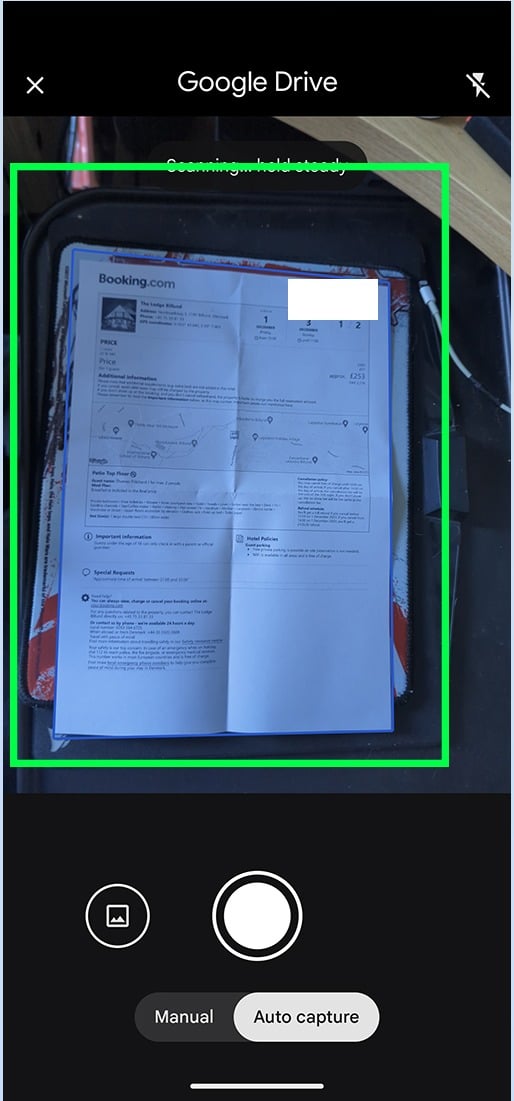
For Android Users (using the Google Drive app):
Open the Google Drive app.
Tap the big, colorful plus sign (+) button, which is usually in the bottom-right corner.
Select “Scan” from the list of options (it will have a camera icon).
Point your camera at the document and tap the shutter button to capture it. You can adjust the cropping if needed.
To add more pages to the same document, tap the plus sign (+) icon. Tap “Save” when you’re finished.

How to Sign and Send Your Scanned Document
Once the document is scanned, you can sign it right on your phone.
On an iPhone: In the Notes app, tap on your scanned document to view it. Tap the Share button (the little box with an arrow pointing up) and then select “Markup.” In the Markup tools, tap the plus sign (+) and choose “Signature.” You can then sign your name with your finger and place it on the document.
On an Android: In the Google Drive app, open your saved PDF scan. You can often tap an “edit” or “pen” icon to add your signature.
To send it, just tap the Share button in either app. You’ll see all the familiar options to send your new, signed PDF through Mail, Messages, or another app. The easiest way to get it onto your computer is often to simply email it to yourself.
Quick Tech Tip
For the best, clearest scans, place your document on a dark, flat surface (like a wooden table or dark countertop) in a well-lit room. The high contrast between the dark background and the white paper helps your phone’s camera find the edges of the document much more easily and accurately.
Tech Term Demystified: ‘PDF (Portable Document Format)’
You see this three-letter file extension everywhere. A PDF is a file format invented by the company Adobe in the 1990s to solve a simple problem: how to create a digital file that looks the exact same on every computer and every printer, regardless of the software or fonts the person has. It’s like a perfect digital snapshot of a printed page, which is why it has become the universal standard for sharing contracts, forms, and any document you want to preserve perfectly.
Good News Byte
This same scanning technology is being used to help preserve human history. Organizations like the Internet Archive, along with major universities and libraries, are using advanced, high-speed scanners to create digital copies of millions of old books, historical manuscripts, and fragile documents. This “digitization” process ensures that the documents are safe from physical decay and, even better, makes them searchable and accessible to anyone in the world with an internet connection.
Did You Know?
The very first “scanner” was a “telephotography” machine developed by AT&T in 1924. It was used to send a photograph of politicians from a convention in Cleveland to New York City over telephone lines so it could be printed in the next day’s newspaper. The process was incredibly slow and the quality was very poor by today’s standards, but it was the first time an image was successfully scanned and transmitted electronically over a long distance.
Your Turn to Try It!
This week, find a simple piece of paper—a grocery receipt, a recipe card, or a junk mail letter. Open your Notes app (iPhone) or Drive app (Android) and just try the “Scan Document” feature. You don’t have to save it or send it anywhere. Just watch how the software finds the edges and magically flattens and cleans up the image. Seeing it in action is the best way to understand how powerful this hidden tool truly is.
Wishing you a week of no more printing,
Steve