
The Best Way to Say "Let Me Show You"
Learn how to record your screen to create a simple how-to video for a friend in need.
Have you ever found yourself on the phone with a friend or family member, trying your best to explain how to do something on their computer or phone? That conversation, filled with "No, not that button... the other one," can be frustrating for everyone involved. We know from our conversations that many of you are the designated tech helpers for your families, while others are the ones asking for that help.
What if, instead of trying to explain a confusing, multi-step process with words, you could send a short video that shows them exactly what to do? You can! It’s called a screen recording, and it’s a simple, powerful tool that’s already built into your phone and computer.
Screen Recording & Mark-Up — “Show, Don’t Tell—Send a 30-Second How-To Video”
Why It's Better Than a Screenshot
A screenshot is a wonderful tool for capturing a single moment, like an error message. But a screen recording is a story. It’s a short video of everything you do on your screen—your cursor moving, your taps and swipes, and the menus opening and closing. It’s the perfect way to demonstrate a process from start to finish, leaving no room for confusion.
The How-To Guide: Recording Your Screen on Any Device
On an iPhone:
First-Time Setup: You may need to add the button to your Control Center. Go to Settings > Control Center, then tap the green "+" next to Screen Recording.
To Record: Swipe down from the top-right corner of your screen to open the Control Center. Tap the Screen Recording icon (a solid circle inside another circle). After a 3-second countdown, your phone will start recording everything you do.
To Stop: Tap the red bar or icon at the top of your screen and confirm you want to stop. The video will be saved to your Photos app.

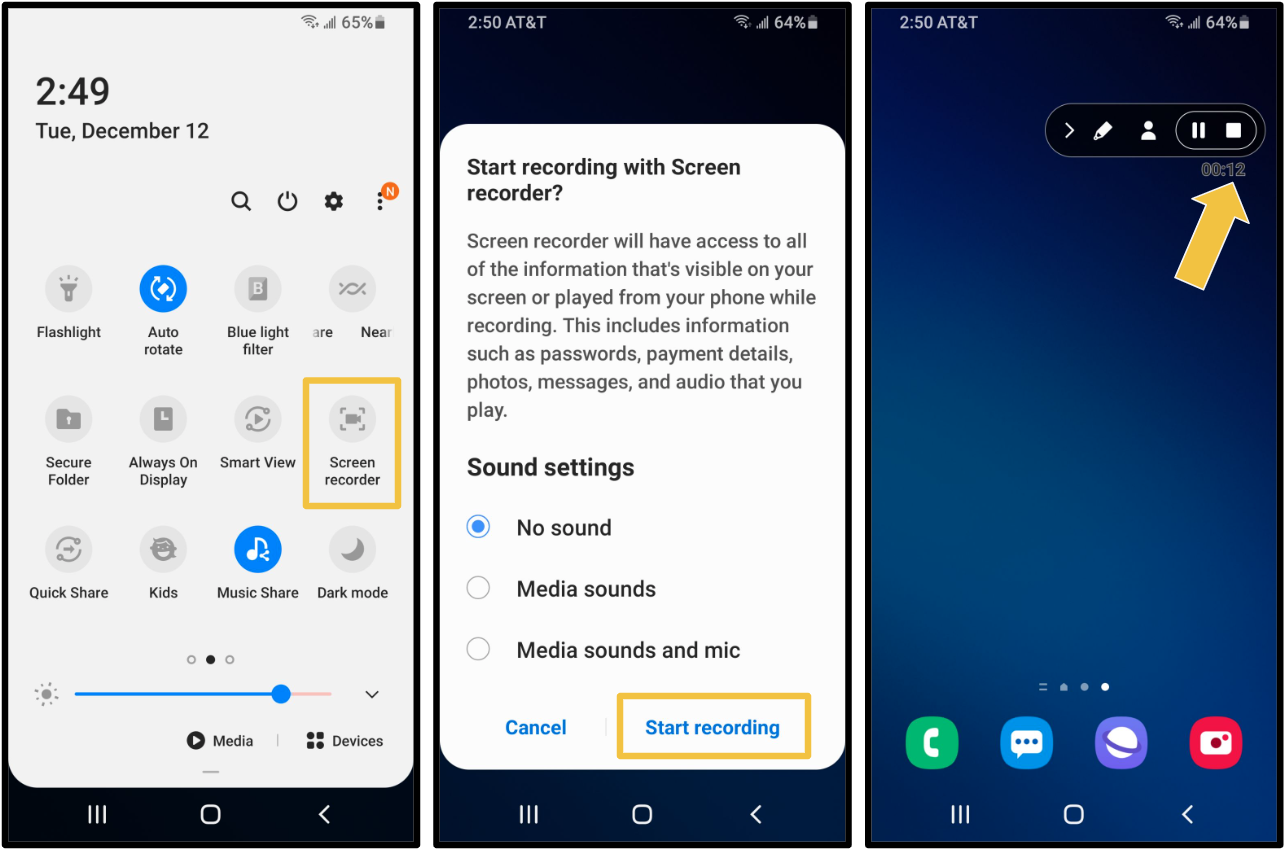
On an Android Phone:
Swipe down from the top of the screen to open your Quick Settings panel. You may need to swipe down a second time to see all the options.
Look for an icon labeled "Screen recorder" and tap it.
A small toolbar will appear. Tap the "Record" button to start. When you're done, tap the "Stop" button on the toolbar. Your video will be saved to your gallery.
On a Windows PC:
The easiest modern way is with the built-in Snipping Tool. Click your Start button and search for "Snipping Tool" to open it.
In the tool's window, click the small video camera icon, then click "New."
Use your mouse to click and drag a box around the area of the screen you want to record.
Click "Start" at the top. When you're finished, click the red "Stop" button.


On a Mac Computer:
Press these three keys at the same time: Shift + Command + 5.
A toolbar will appear at the bottom of your screen. Click the icon that looks like a rectangle with a solid circle in the corner (this is for recording a portion of your screen).
Drag to select the area you want to record, then click the "Record" button.
To stop, click the small stop icon in the menu bar at the very top of your screen.

The Final Touch: Using Mark-Up to Be Extra Clear
After your video is saved to your photos or computer, you can make it even more helpful. Open the video and find the "Edit" option. Look for a "Mark-up" tool (often an icon of a pen tip). This will allow you to pause the video at a key moment and draw a bright red circle or an arrow right on the screen to highlight the exact button your friend needs to tap. It's the perfect finishing touch for a helpful how-to video.
Quick Tech Tip
Before you start a screen recording to help someone else, turn on "Do Not Disturb" or a "Focus" mode on your device (here’s how to do that). This is a crucial step that prevents any of your own personal text messages or notifications from popping up on the screen while you are recording, keeping your video clean, professional, and private.
Tech Term Demystified: 'Mark-Up'
In the digital world, "Mark-Up" is the name for the feature that allows you to draw, write, or add shapes directly onto an image, a document, or even a video frame. It's like having a digital set of highlighters and pens at your disposal. Using Mark-up is a fantastic way to add emphasis—like circling a key button or drawing an arrow to the correct setting—to make your visual instructions impossible to misunderstand.
Good News Byte
Screen recording is becoming an invaluable tool for preserving family history and knowledge. Many people are now using it to record video calls with relatives while they look at old digital photos on a shared screen, capturing not only the photos but also the priceless stories and memories that go along with them. Others are recording family members demonstrating a cherished recipe or a special skill, creating a living video record for future generations.
Did You Know?
The ability to easily record what was happening on a computer screen was originally developed for software testers and developers in the 1980s and 90s. They needed a way to capture bugs and errors "in the act" to prove to their colleagues what was going wrong. It was a professional troubleshooting tool long before it became a simple way for us to show a friend how to change their font size!
Your Turn to Get Ready!
You don't have to record anything yet. This week, just take a moment to find the screen recording button on your phone. Swipe down from the top of the screen to open your Control Center (iPhone) or Quick Settings (Android) and locate the icon. Just knowing where the tool is located is the first step to being able to use it when the need arises!
Wishing you a week of showing, not just telling,
Steve