
The Simple Trick for Saving Anything on Your Screen
Learn the 'secret power' of taking a screenshot—your most helpful tool for troubleshooting and saving information.
Let's talk about a common and often frustrating digital moment: you're looking at your screen, and a confusing error message pops up, or you see an important piece of information you want to save, like an order confirmation. You might think, "I wish I could just show this to someone!"
Well, you can! There's a simple, powerful feature built into every phone and computer called a screenshot. Today, we’ll discuss what a screenshot is, why it might just become your new favorite tech trick, and provide a clear, step-by-step guide on how to take one on your device. A special thank you to my Mom who suggested I cover this topic! She is already an expert on how to do this, but thought it would be good to write about because she finds it very useful.
A Picture is Worth a Thousand Words: The Simple Power of a Screenshot
What is a Screenshot?
A screenshot is simply a picture of whatever is currently displayed on your device's screen. Think of it as using a camera to take a freeze frame of what is currently on your screen.
Why This is Your New Favorite Tool
Taking a screenshot isn't just a novelty; it's one of the most practical and empowering things you can learn to do. We've heard from so many readers how frustrating it can be to describe a tech problem over the phone. A screenshot helps solve this problem.
Asking for Help: This is the #1 reason screenshots are so useful. Instead of trying to describe a confusing pop-up or a strange email, you can capture a picture of it. You can then send that picture to a tech-savvy friend, a family member, or a support service to show them exactly what you're seeing. It takes all the guesswork out of troubleshooting.
Saving Important Information: See an online receipt, a travel confirmation number, a class schedule, or a recipe you want to try? A screenshot is a quick way to save a permanent copy for your records.
Remembering Things Visually: You can take a quick screenshot of directions from a map app before you start driving, or the address of a restaurant you want to remember.
As a Backup for Digital Tickets and Boarding Passes: Airlines and event venues often email you a ticket with a QR code. Take a screenshot of the entire ticket, making sure the QR code is clear. If you arrive at the airport or theater and find the Wi-Fi is slow or you can't get a good cell signal, you might not be able to load your email or the airline's app. Your screenshot, however, is saved as a photo directly on your phone and can be pulled up instantly to be scanned, saving you from a potentially stressful situation.
To Save a Heartwarming or Funny Message: A grandchild or a friend might send a particularly funny joke or a sweet, heartwarming text that makes you smile. Since text conversations can get very long and hard to scroll through, take a screenshot of that specific message bubble. This saves the happy moment as a photo, which you can then easily find later, share with your spouse, or even add to a "Favorites" album.
The How-To Guide: Taking a Screenshot on Your Device
The method is slightly different for each device, but the action is always a quick press of a combination of buttons.
On an iPhone:
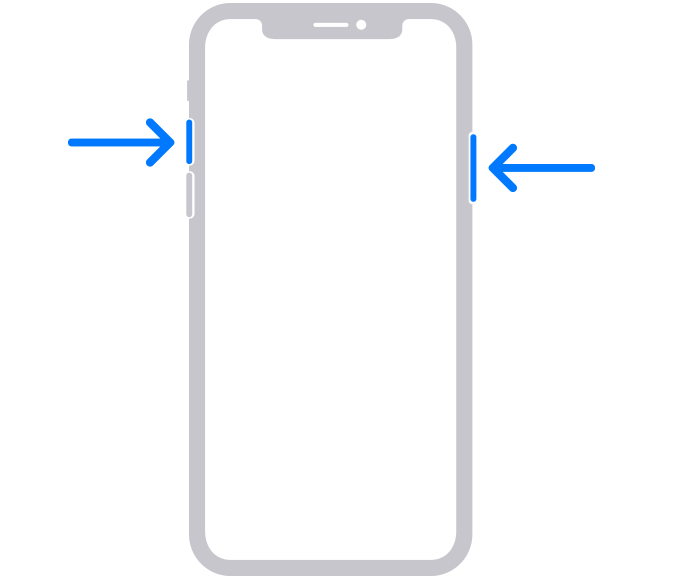
For newer iPhones (without a round Home button): Briefly press the Side button (on the right) and the Volume Up button (on the left) at the exact same time.
For older iPhones (with a round Home button): Briefly press the Side button (or Top button) and the Home button at the exact same time.
This takes some practice because the buttons need to be pressed at the same time exactly. Figure out the best way to hold the phone for you to be able to press them both.
On an Android Phone:
The most common method is to briefly press the Power button and the Volume Down button at the exact same time for a second.
(Some phones also have a "Screenshot" button in the menu that appears when you swipe down from the top of the screen).


On a Windows PC:
To capture just a part of the screen (Easiest Method): Press and hold these three keys together: Windows key + Shift + S. Your screen will dim, and you can then use your mouse to click and drag a box around exactly what you want to capture. The image is copied to your clipboard, ready to be pasted.
To capture the whole screen: Press the Print Screen key (often labeled PrtScn). This copies the entire screen to your clipboard. You can then "Paste" it (Ctrl + V) into an email or document.

On a Mac Computer:
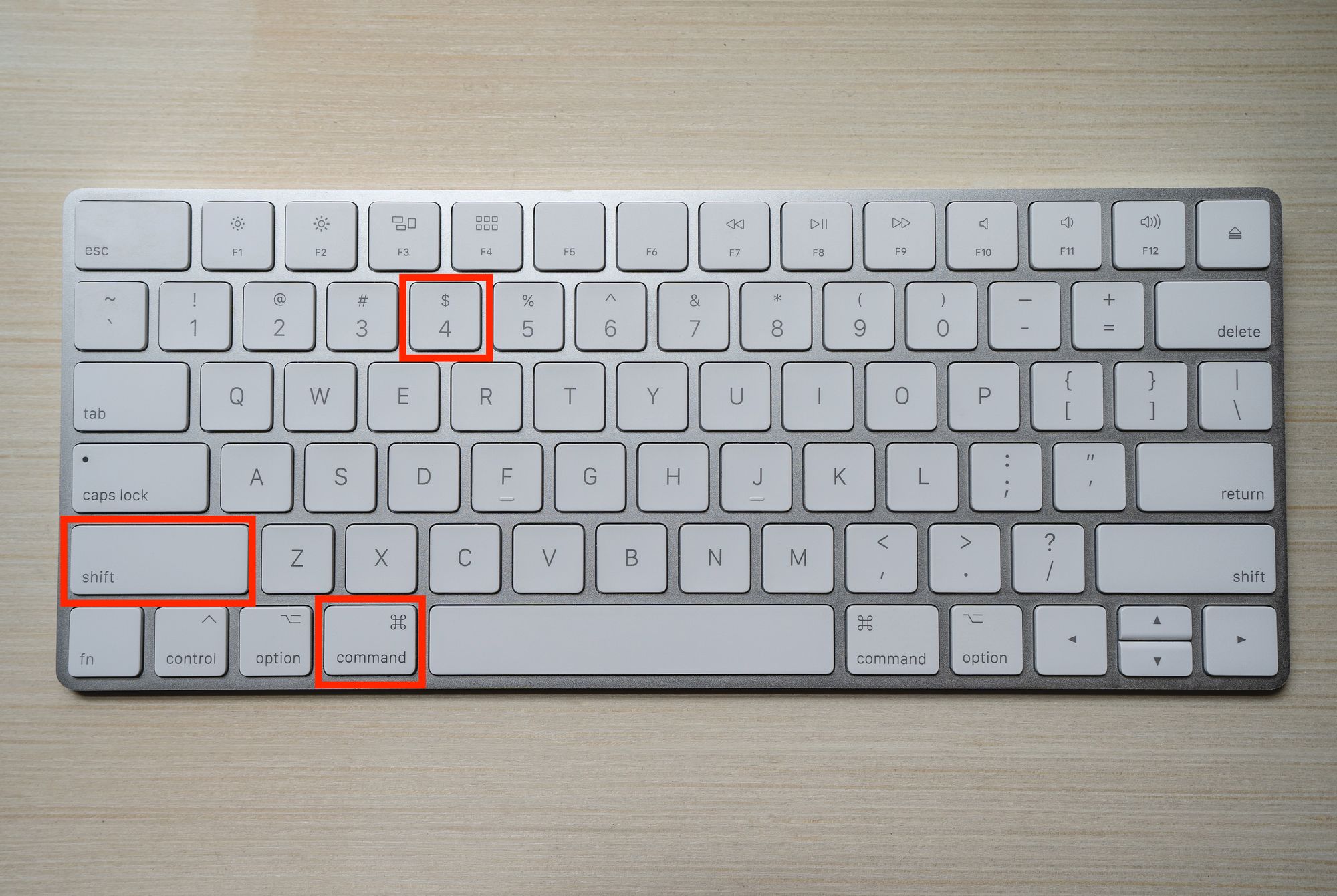
To capture just a part of the screen (Most Useful Method): Press and hold these three keys together: Shift + Command + 4. Your cursor will turn into a crosshair; simply click and drag to draw a box around the area you want to save.
To capture your entire screen: Press and hold Shift + Command + 3.

"Great, I Took It... Now Where Did It Go?"
This is the most important part!
On a Phone or Tablet (iPhone & Android): Your screenshot is saved just like a regular photo. Open your main Photos app, and you will find it as your most recent picture. Most phones also automatically create a special "Screenshots" album to keep them all organized.
On a Computer (Mac & Windows): By default, the screenshot file will usually appear directly on your Desktop, making it easy to find, rename, or attach to an email.
Quick Tech Tip
After you take a screenshot on your phone, a small preview of the image usually appears in the corner of your screen for a few seconds. If you tap on that preview, it will open up an editing tool. This allows you to immediately crop the image, draw a circle around a problem area with your finger, or share it directly, all without having to find it in your Photos app first!
Tech Term Demystified: 'Clipboard'
You'll often hear the term "Clipboard" when you "copy" and "paste" text or images. But where is this mysterious place, how do you see it, and how do you even know something is there? It's a great question because the clipboard is completely invisible, which is what makes it confusing.
Think of it like a magical, single-paged clipboard that your computer or phone holds for you in its short-term memory. When you highlight some text and select the "Copy" command, you are placing an exact copy of that text onto this invisible clipboard.
How do I know it's there? You know something is on it simply because you just performed the "Copy" action. The confirmation is seeing the "Paste" option become available (it's often grayed out when the clipboard is empty), or simply trusting that the copy command worked.
How do I view what's on it? The main way you "view" the contents of your clipboard is by pasting it. When you move your cursor to a new spot—like an email, a document, or a text message—and choose "Paste," whatever was on that invisible clipboard appears.
An Important Note: This magical clipboard usually only holds one thing at a time. If you copy a sentence, and then immediately copy a different phone number, the original sentence is erased and replaced by the phone number.
So, while you can't see the clipboard itself, you can trust that after you copy something, it's held securely in that temporary spot, ready and waiting for you to paste it.
Good News Byte
Taking screenshots is becoming even more useful! On many modern smartphones, if you take a screenshot that includes text, the phone's AI can often recognize those words. This means you can actually select and copy the text directly from the screenshot's image, just as if it were a regular document. This is incredibly handy for saving information like an address or phone number from a picture.
Bonus Tech Tip!
How to Copy Text Directly From a Screenshot
This powerful feature uses your phone's built-in AI to recognize words within an image, allowing you to interact with them just like regular text.
On an iPhone (Using the "Live Text" Feature):
Take Your Screenshot: First, take a screenshot of anything that contains the text you want to save (an address, a phone number, a recipe ingredient list, etc.).
Open the Screenshot: Go to your Photos app and tap on the screenshot to open it full-screen.
Look for the Live Text Icon: In the bottom-right corner of the image, look for a small icon that looks like a piece of paper with lines of text on it [ ]. If you see this icon, it means your iPhone has successfully recognized text in the picture.
Activate Text Selection: Tap that icon. You should see the recognized text become slightly highlighted.
Copy the Text: Now, you can simply press and hold on any word in the image. Just like with regular text, blue handles will appear, allowing you to drag and select the exact sentence or address you want. A small black menu will pop up; just tap "Copy."
The text is now copied to your invisible clipboard, ready for you to paste into a note, an email, or a message!
On an Android Phone (Using the "Google Lens" Feature):
The process on most Android phones is just as simple, though the button looks a bit different.
Take Your Screenshot: Capture the image of the text you want to copy.
Open the Screenshot: Go to your photo gallery (often the Google Photos app) and tap on the screenshot to open it.
Activate Google Lens: Look at the buttons at the bottom of the screen. Tap the one that says "Lens." (It often has a colorful icon that looks like a camera).
Select the Text: Your phone will analyze the image for a moment and then highlight all the text it finds. You can either tap on a block of text to select it all, or you can drag your finger across the specific words you want.
Copy the Text: Once the text is highlighted, an option to "Copy text" will appear at the bottom of the screen. Tap it.
Just like that, you've grabbed the text from a picture without having to manually type a single word. It's an incredibly handy trick for saving information quickly and accurately.
Did You Know?
The concept of a "screenshot" is nearly as old as graphical computers themselves! In the late 1950s and early 1960s, the only way to capture what was on a computer screen was to literally take a Polaroid photograph of the monitor. The ability to do it with a simple software command was a huge leap forward that we now take for granted.
Your Turn to Practice!
Let's try it out in a low-stakes way. Find something interesting on your screen right now—this newsletter article, a weather forecast, a news headline—and use the key combination for your device to take your first screenshot. Then, open your Photos app or look on your computer's Desktop to find the saved image. It’s a skill that gets easier every time you do it!
A Little Bit of Fun
Taking a screenshot of a confusing error message feels like catching a problem red-handed. "Aha! Gotcha! Now I can show someone exactly what you’ve been doing."
Have a wonderful week!
Steve